double stamp
Double Stamp is an easy-to-understand guide to useful computer and internet technology. It's written to be readable by everyday computer users.

Collaborate with Google Docs

Do you ever have the need to collaborate with multiple people on a document, spreadsheet or presentation? Maybe you are a student who is writing a group paper, a captain of a team that needs to keep roster information up-to-date, or a business that needs to keep documents in sync with input from every employee. If you haven't heard of Google Docs, you need to read this.

Google docs is an online office suite with tools for creating documents, spreadsheets, and presentations. All the tools run right inside your browser, so you don't need to actually download and install anything to use it. With Google Docs, multiple people can edit a document with no need to email revisions or keep track of what has changed. It stores the files on the web so that all users can see the latest revision, and no one gets out of sync.

The benefits of this kind of service are huge. No matter where you are, you can get on the web and edit your documents. Forget to make a change at work? No prob, just log on from home and make the changes. Maybe your computer crashed and you didn't make any backups of your files. Under a traditional office setup, this would be a catastrophe. With Google Docs, no problem.

Here's some ways in which I use Docs:

  • A friend of mine and I are researching a certain market for a possible business startup. We keep track of existing products that are similar to ours.
  • A friend of mine and I play pinball all the time. Just for fun we started recording our scores. We now use an online Google spreadsheet to keep all kinds of stats on our games.
  • When I do web design, I keep track of the hours spent and what I did. I can easily share this information with a client so that they can keep tabs on what is going on. It makes them feel comfortable, and prevents me from having to respond to status requests.
  • I am creating an online presentation of some research that I am performing as a PhD student. I can easily embed my presentation on my academic website, and my advisor can join in on the editing.
The features of Google Docs are not as rich as Open Office or MS Office, but that doesn't mean it is not useful. In fact, the fact that your information is always available more than makes up for the deep features that you may never use anyway. If your internet connection is really slow, Google docs may not be your best option.

Give it a try and explore the features. As usual, you have nothing to lose!

Google Street View

Google Maps has an amazingly fun/useful feature that allows you to actually see pictures of the streets and address you are interested in. They hired people to drive specials cars all around the cities of the United States, each of which has a special camera that takes pictures at numerous angles. Here's an example: a tiny little canyon in Salt Lake City called "City Creek." Try clicking the arrow buttons to move around and zoom.


View Larger Map

Unfortunately, not all cities in the United States are included. Google is adding new data at a rapid pace, however, and it should only be a matter of time before your favorite places are scanned.

To use street view, just go to http://www.google.com/maps and type in an address or place. Then click the button on the top right corner of the map that says "Street View." If street view is available for your location of interest, you should see a little yellow man and the streets will be colored blue. Place the yellow man on any location to see pictures of the address.

OpenDNS

Are you a parent that is concerned about your kids accessing certain content on the Internet? Maybe you would like to have more control over your family's connection to the web? If you're interested in setting up an excellent filtering/monitoring system, this is for you.

OpenDNS is a free Internet service that allows you to do the following:

  • Automatically filter pornographic sites from your internet connection.
  • Manually block certain sites that you specify.
  • Monitor your web traffic statistics. See what sites are being accessed most and what time of day.
  • Prevent "phishing" sites that try to steal your information.
  • See a complete list of features here.
OpenDNS is great because it doesn't require that you run any software on your own computer. This prevents you having to keep a program running in the background, which frees up your resources and prevents you from screwing something up. Here's how to get started:
  1. Sign up for a free account here.
  2. Choose which method you want to use here. You can either use OpenDNS with your router so that all computers in your house are monitored, or you can just do it to one computer.
  3. Follow the instructions provided for the method you choose.
  4. Read up on all the great features.
You're all set. OpenDNS is really a great service and one that can be extremely helpful in a variety of situations. If you're a parent, keep in mind that you still need address the issue of web content directly with your kids. It's not OpenDNS's job to make sure your kids learn what they need to stay out of trouble on their own. That said, it can be a great way to keep tabs on things. Yes, that's right, Double Stamp is now providing parenting advice for free.

The rest of this article is optional for those of you who want to know how OpenDNS works.

OpenDNS works by taking advantage of the way a URL is retrieved from the web. When you type in a website like "http://doublestamp.blogspot.com" your computer first connects to what is called a "DNS Server." Basically, it's a big phone directory. You tell it the name of the website you want to go to, and it returns an IP address behind the scenes. Your computer then connects to the IP address to get to the website of interest.

Now, if you tell your computer to use OpenDNS as the directory, you give them control to filter what your computer is requesting. For example, if someone attempts to visit a pornographic site, OpenDNS recognizes it as such, and does not return the IP address. It's kind of like having a phone book that won't give out the phone numbers to certain people.

Gmail 101: Labels and Archiving

No! Gmail does not need "folders!"

Recently, and on more than one occasion, people have complained to me that Gmail does not have a "folders" feature for organizing email. They said that their inbox was really cluttered in Gmail because they couldn't move their emails into folders. I am here to tell you that it DOES in fact have this capability. In fact, it can do more than regular folder organization can.

First of all, a "label" is the same thing as a "folder," only a single email can be given multiple labels for convenience. For example, let's say that you get an email with the subject "Job Fair at the University." You could apply the labels "Job" and "School" to this email.

Secondly, if you would like to move an email out of your inbox without deleting it, simply click the button that says "Archive." This will take it out of your inbox, but you will still be able to find it under the labels that you have applied. Archived email can also be found under the "All mail" link.

If you're interested in automatically applying labels and archiving, check out this help file on Gmail filters.

Managing Email Lists the Right Way

Do you belong to a group that sends mass emails to each other? Do you rely on the "Reply to All" function so that everyone in the group can converse? If so, I think you'll find this post useful.

A "List Server" or "Group" is a smarter way to have conversations with groups via email. Instead of sending an email to every person on the list, you simply send it to the group's email address. The software that runs the group takes the email that you just sent it, and passes it on to everyone who is "subscribed" to the group. Then, when someone replies, it is sent back to the group software, and it again passes the reply on to everyone.

Here's why you should use a list server or group service:

  • When a user decides they don't want to be on a list anymore, or if they need to change their email address, they can modify their subscription on their own. This saves the maintainer of the list a big hassle.
  • Each recipient's email can be kept private. Don't you hate it when your email is on a big list?
  • Sending email to ONE address delivers the information to everyone in the group.
  • Email is archived automatically so that it can be viewed later, even if individual users delete their emails.
  • You can set different permissions for the list. It can be set up for the general public, or kept completely private.
The good news is that you don't need to be a computer nerd to set up a list like this. Google and Yahoo both provide group services.

I set up a group for my family about a year ago and it has been a great success. People send out emails to the family with ease, and the service keeps an archive of all emails. Even if all the members of the group delete their emails, there is still an online archive of all posts to the list.

Try it out. Once you do, you'll never want to use a mass carbon-copy list again.

Task Lists (To-Do) in Gmail

Don't you wish Gmail had a nice task list feature? Maybe something like this:


Looks really cool, right? This article will show you how to set it up in about 3 minutes using the Firefox web browser.

First of all, you need a free account with the Internet's best task list service Remember the Milk. You can learn more about it by reading my previous post, or by visiting their tour. After you set up your free account, all you have to do is download and install the Remember the Milk for Gmail Firefox extension.

After installing the extension, just restart Firefox, log in to Gmail, and BOOM, you've got yourself a feature-rich task list right along side of your inbox. Excellent! Be sure to read up on all the great features that this extension has. The people over at Remember the Milk really are doing some exceptional work.

Are Your Gmail Contacts a Huge Mess?

Gmail is one of my favorite internet products of all time, but it's contact manager sucks. Many of you who have tried to manage your contacts in Gmail have probably given up and used some other site or software. This article is how to keep track of your contacts in Gmail, without pulling your hair out.

The biggest problem with Gmail contacts is that anyone who you send an email automatically gets added to your contact list. This can obviously drive you crazy when you go to look up a friends phone number, and have to sift through all the people that you emailed one time, and can't even remember who they are. It also creates a problem when you accidentally type someone's email incorrectly. Then, when you go back to send another email, you can't remember which one is correct. If your like most people, your Gmail contacts are probably a huge mess, so here's how you fix it.


Does your Gmail contact list look like this?


Go into the contact manager by clicking the "Contacts" link on the right side of the page. Next, click the button that has a plus sign and a picture of two cartoon people. A box will pop up that says "What would you like to name this group?" Enter something like "My Contacts" and click OK.

Now you have a new group for contacts that will only be added to if you intentionally tell Gmail to put a contact in this group. You'll need to spend some time adding your existing contacts into your system. To do this, select the contacts from the "All Contacts" group and then click the button that says "Groups->Add to...->My Contacts." If you are using another program for contacts, you'll need to import them into Gmail first.

Now that you have a new contact group, you can manage your contacts without Gmail screwing them up. Keep in mind that you can create any number of groups to solve the problem. For example, you could create a separate group for family, friends, and business contacts. When you need to find a number or address, just jump to your new group for a list without the clutter and incorrect contacts. It's a simple solution, but it's already saved me a headache.

There are still a lot of things that Google needs to do to improve it's contact management system, but this will at least get you by. If you'd like to join me in requesting Google to improve this system, use this page.

Track Your Websites with Analytics

Almost everyone has a blog or personal website. Wouldn't it be cool if you could tell how many people are visiting your site, where they came from, and how long they stayed? For those of you who aren't web designers, it probably sounds like a lot of work, but I'm going to show you how to do it on your blog in under 10 minutes. Like most things discussed on Double Stamp, it's entirely free.

A web visitor tracking system is often called an "analytics" system. It allows you to find out the following:

  • How many visits your site/blog is getting.
  • Where your visitors are geographically located.
  • Where your traffic is coming from (other sites, search engines, etc).
  • How long visitors are staying on your site.
  • Much more.
"Google Analytics" is a free system that is simple to use/install, and has tons of features. I use it here on Double Stamp, and it's powerful enough to track corporate websites that rely on web statistics to drive their sales. While there are other analytics systems that you can use, Google's is very powerful, clean, and free of charge.

Here's how you would set up Google Analytics to track your Blogger blog.
  1. Sign up for the service at http://www.google.com/analytics
  2. Click on "Add Website Profile"
  3. Check the box that says "Add a Profile for a new domain" and then enter the URL of your blog.
  4. Copy the code that is given on the next page. It looks like this:


  5. Open your blogger page and go to your settings.
  6. Click on the "template" tab. Click on "Add a page element" at the bottom of your blog. Don't add it to the sidebar.
  7. Choose the "HTML/Javascript" element to add it to the page.
  8. Don't enter a title. Paste the code that you copied from google analytics into content. Click "Save Changes. It should look like this:

That's it! You can now track who is visiting your site by logging into www.google.com/analytics and navigating through the data. Here's an example screenshot of the number of visits during the month.


Here's a location map for visitors coming from the state of Utah.
Don't be afraid to poke around the system and find out about numerous other features. As always, read through the help files to get up-to-speed. To install Google Analytics on a site other than blogger, just read the how-to on the Analytics page. Enjoy!

Ubuntu! *clap clap clap*

I have been avoiding this post for a long time, but it is finally time that I tell you about what I believe to be the most promising future of computers. If you know me personally, I have probably already talked your ear off about this subject, but I avoided posting about it here in Double Stamp because I wanted some more time to get my facts straight.

Before we go any further, ask yourself these questions:

  • Would you rather pay hundreds of dollars for your computer system (software), or get it for free?
  • Are you tired of buying a Windows computer, only to find that your new system already has a bunch of crap installed that you never wanted?
  • Do you get really annoyed when it takes 5 minutes for your computer to completely load, even though it seemed to work fine 3 months ago. Are you tired of all those automatic start-up programs taking over?
  • Are you tired of having to buy, install and run anti-virus and spyware software?
  • Are you tired of being manipulated into using only Apple products, just because you bought an iPod?
  • If someone offered you a solution to all of these problems for FREE, would you be interested??? Read on.
Most of you have probably heard of Linux before, but haven't had much experience. In the past, Linux was an operating system used mainly on servers (computers that run in the background), or on computer geek machines. Over the past 5 years, however, Linux has become very user friendly and powerful for both the geeks and typical users.

Linux comes in all shapes and sizes, and each variant of the system is called a distribution. It's like a hand in a glove. Linux is the hand, the part that is the core of the motion, and the distribution is the glove. You choose a distribution based on what you need to do. If your objective is to stay warm, you choose a warm glove, and if you want to hit a hole in one, you use a golf glove.

Ubuntu (pronounced "ooo-boon-too") is the name of my favorite Linux distribution. It's purpose is to be very user-friendly and powerful for people like you and me. With Ubuntu, you can basically do everything that you can do with another operating system like Windows or Mac. For example,
  • Browse the internet
  • Create/edit office documents for word processing, spreadsheets, presentations, etc.
  • Use email, calendar, task lists...
  • Edit your photos: crop, resize, fix colors, contrast, etc.
  • Play games, chat online via IM, and much, much more.
Now, why would you even want to try Ubuntu?
  • It's is legally 100% free and always will be. So are all the programs you need. No more paying hundreds for Windows or Mac software! There are thousands of great programs to choose from in Ubuntu; it's like a free shopping spree for software.
  • You can do basically everything that you can do with Windows or Mac, and there are many things that it can do exclusively.
  • It runs very clean; no problems with programs automatically loading on start-up and hijacking your memory.
  • No need for anti-virus or spyware software that slow your computer down and cost money.
  • It is extremely easy to use, and is very secure.
  • It is easy enough for a beginner to use, yet powerful enough for computer geeks to love it. My mom, who just started using computers, can use Ubuntu with no problem.
You are hopefully starting to get the idea. Now that I have talked it up, how about a little tour of the computer I am using to write this article. Let's begin by looking at the desktop.
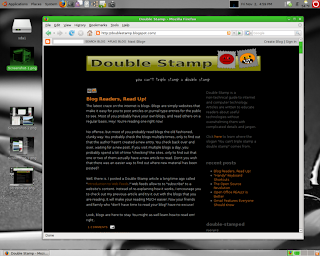

Check this out, I will now "flip" my desktop and work on a fresh space. When I want to come back, I'll just flip back. It's like working on the sides of a 3D cube. This allows me to manage my windows without getting too cluttered.
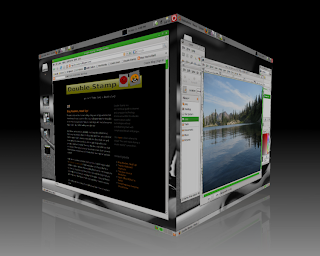

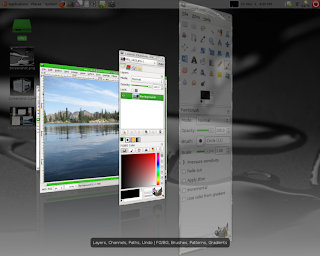
Where did that one window go? Oh, let me just flip through them visually.

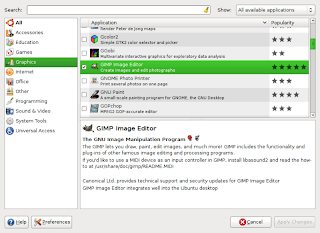
Now I want to download a new program. I'll just open the automatic software installer that allows me to simply place a check mark next to the programs that I want. It then downloads and installs for me! If I want to get rid of the program, I just un-check the box.

Are you "sold" yet? If so, you don't have to pay a dime for this system. You can download or order CD's to install Ubuntu for free. Just go to www.ubuntu.com and look for the download links. If you want to try it out, you can do so without even actually installing it on your computer by running it from the CD. You can also install it in a way to keep your old operating system intact, enabling you to choose which system to run when you boot up. If you want to try it out, but need some help getting started, post up in the comments and I will help you personally.

Ubun-tu *clap clap clap* Ubun-tu *clap clap clap* Ubun-tu *clap clap clap*

Blog Readers, Read Up!

The latest craze on the internet is blogs. Blogs are simply websites that make it easy for you to post articles or journal type entries for the public to see. Most of you probably have your own blogs, and read others on a regular basis. Hey! You're reading one right now!

No offense, but most of you probably read blogs the old fashioned, clunky way. You probably check the blogs multiple times, only to find out that the author hasn't created a new entry. You check back over and over, waiting for a new post. If you visit multiple blogs a day, you probably spend a lot of time "checking" the sites, only to find out that one or two of them actually have a new article to read. Don't you wish that there was an easier way to find out where new material has been posted?

Well, there is. I posted a Double Stamp article a long time ago called "Introduction to Web Feeds." Web feeds allow to to "subscribe" to a website's content. Instead of re-explaining how it works, I encourage you to check out my previous article and try it out with the blogs that you are reading. It will make your reading MUCH easier. Now your friends and family who "don't have time to read your blog" have no excuse!

Look, blogs are here to stay. You might as well learn how to read em' right.